Hi @Celeste Mclean,
Thank you for posting your question in the Microsoft Q&A forum.
I understand how stressful it can be to face this issue, especially with an important school project due soon.
Could you please let me know which version of Microsoft Word you're currently using? This will help me tailor the solution more accurately to your setup.
In the meantime, there are a few steps you can try to recover your document:
1. Try “Open and Repair” in Word
- Open Microsoft Word (don’t double-click the file directly)
- Go to File → Open → Browse
- Navigate to the file on your Desktop
- Select the file (don’t double-click)
- Click the arrow next to the Open button → choose Open and Repair
For your reference: Open a document after a file corruption error - Microsoft Support
- Unblock the File + Add Desktop to Trusted Locations
For your reference: How to resolve the problem "Word experienced an error trying to open the file" when opening a Word 2007/2010 file (Easy Fix Article) - Microsoft Support
3. Temporarily Disable Protected View
- Open Word → File → Options → Trust Center → Trust Center Settings
- Go to Protected View
- Uncheck all three options:
- Enable Protected View for files originating from the Internet
- Enable Protected View for files located in potentially unsafe locations
- Enable Protected View for Outlook attachments
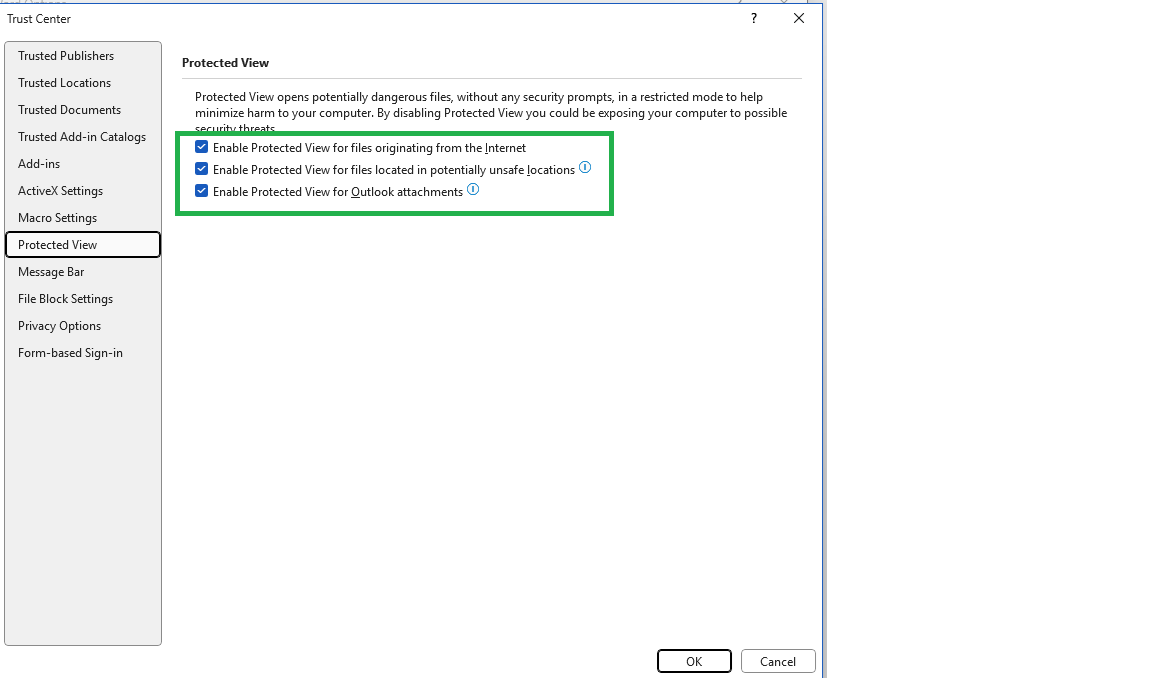
- Click OK, then try opening the file again
Please let me know if there are any updates. I'm happy to assist further whenever needed
If the answer is helpful, please click "Accept Answer" and kindly upvote it. If you have extra questions about this answer, please click "Comment".
Note: Please follow the steps in our documentation to enable e-mail notifications if you want to receive the related email notification for this thread.

' cx='32' cy='32' r='32' /%3E%3Ctext x='50%25' y='55%25' dominant-baseline='middle' text-anchor='middle' fill='%23FFF' %3ECM%3C/text%3E%3C/svg%3E)

' cx='32' cy='32' r='32' /%3E%3Ctext x='50%25' y='55%25' dominant-baseline='middle' text-anchor='middle' fill='%23FFF' %3ERL%3C/text%3E%3C/svg%3E)