Office Suite products fail to function after buying latest versions

Tom Karlicek 0 Reputation points
2025-12-02T18:12:02.85+00:00

Started to get the attached error in October. PowerPoint, Word and Excel fail to open and I get similar error messages. I purchased the latest update and the problem persists. I need a fix. Please.

Microsoft 365 and Office | PowerPoint | For business | Windows
{count} votes

2 answers

Sort by: Most helpful
  1. Q&A Assist
    2025-12-02T18:12:15.7266667+00:00
    AI generated content. This question contains an answer created with AI from Q&A Assist. Learn more

    If you're experiencing issues with PowerPoint, Word, and Excel failing to open after purchasing the latest versions, it could be due to several reasons, including file path length limitations or issues with your installation. Here are some steps you can take to troubleshoot and potentially resolve the issue:

    1. Check for Error Messages: When you attempt to open the applications, note any specific error messages you receive. Common messages include "Filename is not valid" or "The file could not be accessed."
    2. File Path Length: Ensure that the total length of the file path and file name does not exceed the limits (259 characters for Word, PowerPoint, and Access; 218 characters for Excel). If it does, try renaming files or moving them to a shorter path.
    3. Repair Office Installation: You can try repairing your Office installation. Go to Control Panel > Programs > Programs and Features, select your Microsoft Office installation, and choose the Repair option.
    4. Clear Disk Space: Ensure that you have sufficient disk space available, as running low on space can prevent files from opening or saving properly. Use the Disk Cleanup tool to free up space if necessary.
    5. Update Office: Make sure that your Office applications are up to date. Sometimes, updates can resolve bugs or issues that may be causing the applications to fail.
    6. Reinstall Office: If none of the above steps work, consider uninstalling and then reinstalling the Office suite to ensure a clean installation.

    If the problem persists after trying these steps, you may want to reach out to Microsoft Support for further assistance.


    References:

    0 comments No comments

  2. Ryan-N 8,400 Reputation points Microsoft External Staff Moderator
    2025-12-02T18:58:02.3266667+00:00

    Hi @Tom Karlicek,

    Welcome to the Microsoft Q&A forum.

    Thank you for reaching out to us. Please provide the following information:

    • Which version of Office are you using?
    • Could you share the error code or the error message displayed?

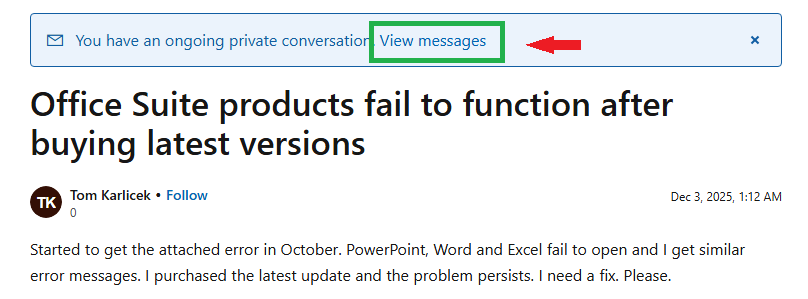
    Please send this information via a private message to protect your personal details:
    User's image

    In the meantime, you can try the following steps to resolve the issue:

    1. Search for Settings in the Windows search bar.
    2. Click Apps > Installed apps and locate the Office suite.
    3. Click Modify and select Online Repair.

    I hope this information is helpful. Please follow these steps and let me know if they work for you. If not, we can work together to resolve the issue. Thank you for your patience and understanding.

    If you have any questions or need further assistance, feel free to share them in the comments on this post so I can continue to support you.

    I look forward to your response.


     If the answer is helpful, please click "Accept Answer" and kindly upvote it. If you have extra questions about this answer, please click "Comment". 

    Note: Please follow the steps in our documentation to enable e-mail notifications if you want to receive the related email notification for this thread. 

    0 comments No comments

Your answer

Answers can be marked as 'Accepted' by the question author and 'Recommended' by moderators, which helps users know the answer solved the author's problem.