Hi @KNIGHT, Lisa
Thank you for contacting the Microsoft Q&A forum.
Since you mentioned that the Teams Meeting option is greyed out, could you please confirm whether the Microsoft Teams Meeting Add-in for Microsoft Office is listed under Active Application Add-ins?
You can check this by navigating to File > Options > Add-ins in Outlook.
If it is not listed, please enable the Microsoft Teams Meeting Add-in for Microsoft Office by following the steps below:


After enabling the add-in, please restart the classic Outlook app to apply the changes.
For reference, you can review this article: Troubleshoot the Teams Meeting add-in in Outlook for Windows - Microsoft Support
Once the add-in is enabled, you should be able to add a Teams meeting to an existing appointment in your calendar. Simply go to the ribbon and select Teams Meeting > Choose the account to create the meeting > Schedule the meeting.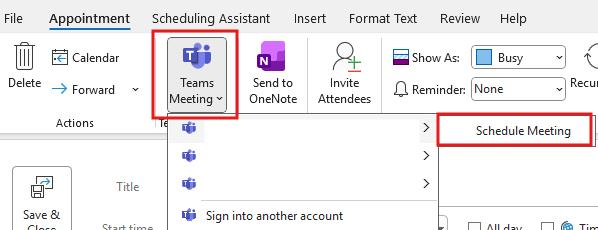
After adding the Teams meeting, a Teams link will appear in your appointment. When you click Send, an email with the meeting details will be sent to all attendees.

If the issue persists, please ensure your account has Microsoft Teams activated.
Additionally, ensure that the meeting policies in your organization allow Outlook add-ins. You may want to ask your IT administrator to verify this in the Microsoft Teams Admin Center by following the steps outlined in the reference below: 

Reference: Admin - Authentication requirements and functionality of the Teams Meeting add-in in Outlook - Micr…
Could you also share a screenshot showing the enabled add-ins in classic Outlook via a private message?
Please check your inbox for an email with the subject “New private message on Microsoft Q&A question” to review my response.
I hope this helps clarify your situation and supports you in resolving the issue. If you have any updates, please feel free to share.
If the answer is helpful, please click "Accept Answer" and kindly upvote it. If you have extra questions about this answer, please click "Comment".
Note: Please follow the steps in our documentation to enable e-mail notifications if you want to receive the related email notification for this thread.
' cx='32' cy='32' r='32' /%3E%3Ctext x='50%25' y='55%25' dominant-baseline='middle' text-anchor='middle' fill='%23FFF' %3EKL%3C/text%3E%3C/svg%3E)


' cx='32' cy='32' r='32' /%3E%3Ctext x='50%25' y='55%25' dominant-baseline='middle' text-anchor='middle' fill='%23FFF' %3EVV%3C/text%3E%3C/svg%3E)