cannot sync new outlook with icloud for windows

Josef Weishaupt 0 Reputation points
2025-12-11T11:05:10.4366667+00:00

in icloud for windows I cannot activate the sync for emails, calender and contacts. There is no activate bar

Outlook | Windows | New Outlook for Windows | For home
0 comments No comments
{count} votes

2 answers

Sort by: Most helpful
  1. Q&A Assist
    2025-12-11T11:05:21.0566667+00:00
    AI generated content. This question contains an answer created with AI from Q&A Assist. Learn more

    The new Outlook for Windows supports various account types, including iCloud. However, if you're unable to activate the sync for emails, calendar, and contacts in iCloud for Windows, it may be due to compatibility issues or settings not being configured correctly in either Outlook or iCloud.

    Here are a few steps you can take to troubleshoot the issue:

    1. Ensure Compatibility: Make sure you are using the latest version of both Outlook and iCloud for Windows. Updates often include important fixes and improvements.
    2. Check iCloud Settings: Open iCloud for Windows and ensure that you have selected the options to sync Mail, Contacts, Calendars, and Tasks. If the activation bar is missing, try signing out and back into iCloud.
    3. Reinstall iCloud: If the issue persists, consider uninstalling and then reinstalling iCloud for Windows. This can sometimes resolve sync issues.
    4. Check Account Settings: In Outlook, ensure that your iCloud account is properly set up. You may need to remove and re-add the account if there are any discrepancies.
    5. Consult Support: If none of these steps work, you may need to consult Microsoft or Apple support for further assistance, as they can provide more specific guidance based on your setup.

    If you continue to experience issues, it may be helpful to check for any known issues with the sync feature between Outlook and iCloud.

    0 comments No comments

  2. Sumit D - IA 151.4K Reputation points Independent Advisor
    2025-12-11T12:00:45.1166667+00:00

    Hi Jospeh,

    Do you want to use your iCloud account in New Outlook?

    Via https://support.microsoft.com/en-us/office/add-or-manage-an-icloud-email-account-in-outlook-4aed8b3d-3c68-4743-8973-f6bd1c56e040

    1. On the View tab in new Outlook, select View settings, or on the File tab, select Account info.
    2. Select Accounts > Your accounts.
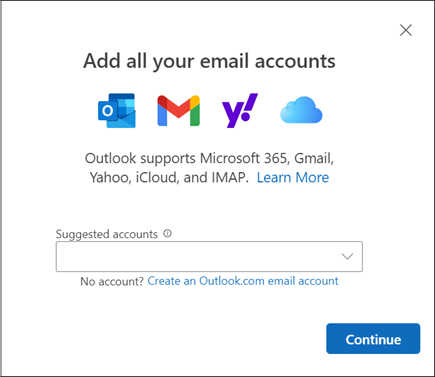
    3. Select Add Account, in the Suggested account dropdown, enter the iCloud account you want to add, and select Continue. Add account dialog box in new Outlook for Windows
    4. On Sync your iCloud account, select Continue.
    5. If prompted, enter your password. However, if you have two-factor authentication set up, you might see a window asking you to Create an app-specific password. To obtain an app-password, do the following:
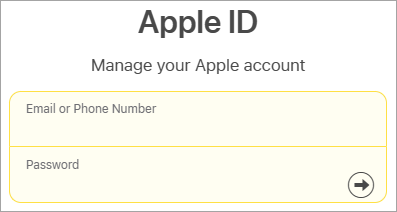
      1. Go to the Apple ID website in a web browser and enter your Apple ID and password. Screenshot of Apple ID sign in
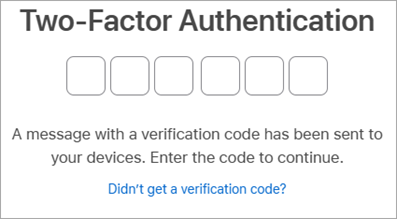
      2. If you already turned on two-factor authentication, you'll receive a code on one of your trusted devices. Enter this code to continue. Otherwise, turn on two-factor authentication. Screenshot of Apple ID 2-factor authentication
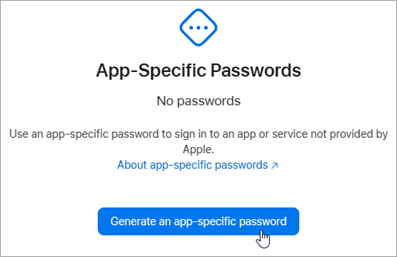
      3. From Sign-In and Security, select App-Specific Passwords > Generate an app-specific password. Screenshot of window to generate an app-specific password
      4. Type a name for the App-Specific Password and select Create. (If prompted, enter your iCloud password and select Continue.)
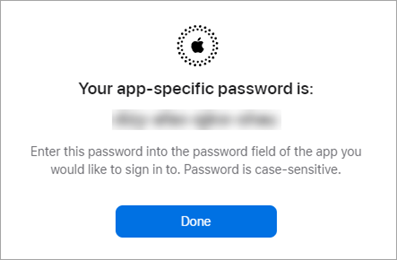
      5. Copy the app-specific password and select Done. Screenshot of app-specific password
      6. Return to new Outlook and paste the app-password in the App password box. Select Continue.
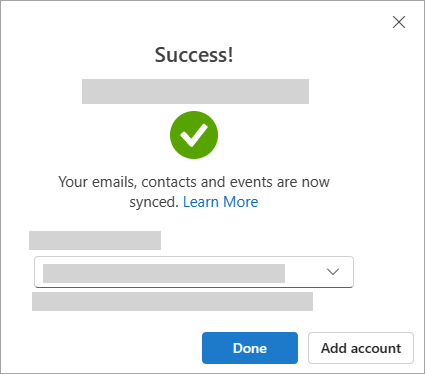
    6. The Success! window indicates your iCloud account was successfully added to Outlook. Select Done, or add another email account. Screenshot showing success window when adding a Google account Tip: If your sign in was unsuccessful, try the steps again, or select Advanced setup and follow the prompts.

Your answer

Answers can be marked as 'Accepted' by the question author and 'Recommended' by moderators, which helps users know the answer solved the author's problem.