Note
Access to this page requires authorization. You can try signing in or changing directories.
Access to this page requires authorization. You can try changing directories.
APPLIES TO:  Power BI Desktop
  Power BI service
Goals in Power BI let you curate your goals and track them against key business objectives in a single pane. In this article, you complete the following steps:
- Create your first scorecard.
- Create a manual goal.
- Edit a goal.
- Share the scorecard with others.
You can also connect goals to an existing report visual in Power BI. For more information, see Create connected goals.
Prerequisites
You need a Power BI Pro license to author and share goals in standard workspaces. You also need:
- Admin, Member, or Contributor role in a workspace. For more information, see roles in workspaces.
- Build permission for a semantic model.
Step 1: Create a scorecard
Sign in to the Power BI service in your browser.
Select Metrics in the navigation pane to open the Metrics hub.

In the Metrics hub, select New scorecard.
A new scorecard opens, which you can start populating with goals.
Select the edit pencil next to Untitled Scorecard and give your new scorecard a name.
Power BI automatically saves the scorecard to My Workspace, but you can move it to another workspace. Select File > Move Scorecard.

In the Move scorecard dialog, select any available workspace, then select Continue. If you don't have another workspace, you need to create one first. For more information, see Create a workspace in Power BI.

In the workspace that you selected, Power BI saves the scorecard itself and a semantic model associated with your scorecard that houses all the metrics data.
Step 2: Create a goal
In the scorecard, select New goal.
Provide the following values for your goal:
Field Value Goal name Provide a name for your goal. The name is the only required field for your goal. You can leave the other fields blank and come back to edit them. Owners Select one or more owners for your goal. Owners can be individuals or distribution groups. Current value Add a manual value or connect to an existing report visual in Power BI. When you edit a manual value, you can also format the number. For more information, see Create connected goals. Final target Add a manual value or connect to an existing report visual in Power BI. When you edit a manual value, you can also format the number. For more information, see Create connected goals. Status Choose from a list of preset statuses or select Or set up rules to create a status rule. Start date Select the start date for this goal. Due date Select the due date for this goal. 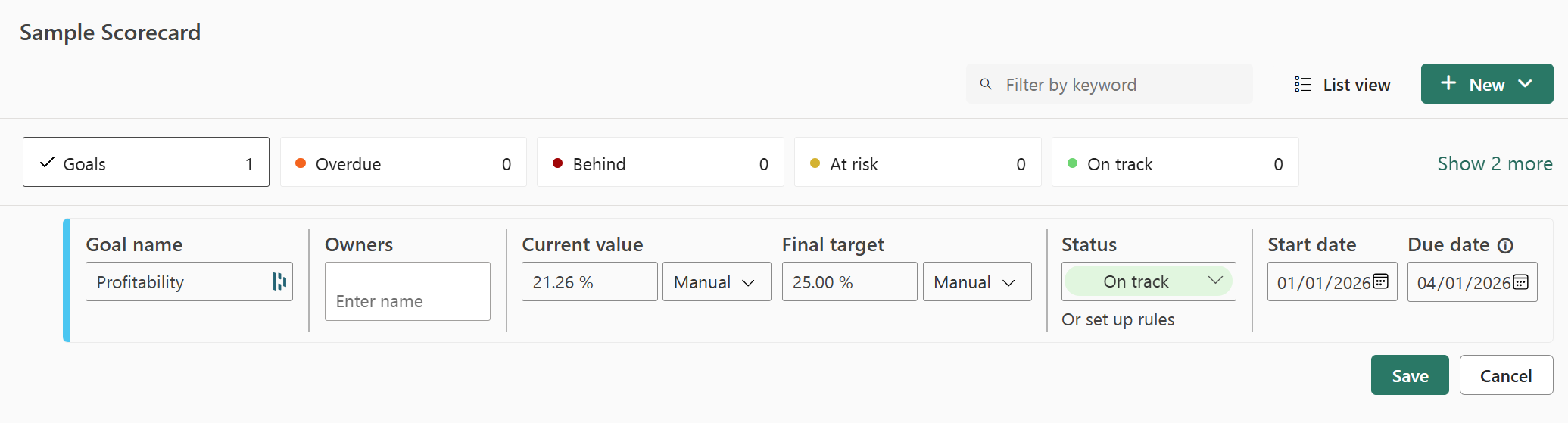
Power BI automatically represents values in numeric notation. For example, 2044 is represented as 2 K.
Select Save.
Step 3 (Optional): Create subgoals
You can define one or more subgoals for your goal. Like their parent goals, subgoals can be either connected or set manually. For more information, see Create subgoals.
Step 4 (Optional): Update the goal tracking cycle
All new goals created within scorecards have a default daily tracking cycle, which means that the data and progress are calculated on a day-to-day basis. However, many goals and subgoals need to be tracked on a different cadence. In those cases, you can change the default tracking cycle. The tracking cycle doesn't impact data refresh.
Open a scorecard.
Hover over any goal or subgoal, then select More options > See details.

Select the Time period tab.
Set the tracking preferences for this goal, and select Save.

Step 5 (Optional): Share your scorecard
Sharing is the easiest way to give people access to your scorecard in the Power BI service. You can share with people inside or outside your organization.
When you share a scorecard, the people you share it with can view and interact with it. They can also edit it if they have an Admin, Member, or Contributor role in the workspace. Users who have access to the scorecard see the same data you see in the scorecard. The coworkers you share with can also share with their coworkers, if you allow them to. The people outside your organization can view and interact with the scorecard, but can't share it.
To share, select the Share button in the scorecard action bar and follow the steps outlined in the experience. It's the same as sharing a dashboard.

When you share scorecards, whether inside or outside your organization, your recipients need Power BI Pro licenses, unless the content is in a Power BI Premium capacity.
Related content
- Get started with goals in Power BI
- Create connected goals in Power BI
- Stay on top of your goals in Power BI
More questions? Try the Power BI Community.