Observação
O acesso a essa página exige autorização. Você pode tentar entrar ou alterar diretórios.
O acesso a essa página exige autorização. Você pode tentar alterar os diretórios.
Aplica-se ao: SQL Server
Este artigo descreve maneiras de identificar extensões não íntegras que não estão instaladas corretamente, sendo executadas corretamente ou não conectadas ao Azure.
Identificar extensões não íntegras
Usar o painel de integridade de extensões integrado no portal do Azure
Você pode usar o painel de integridade de extensão interno no portal do Azure para mostrar a integridade de todas as extensões implantadas do Azure para SQL Server.
Dica
Crie seu próprio painel de controle personalizado com este arquivo do repositório GitHub sql-server-samples: Arc-enabled SQL Server Health.json.
Consultar extensões com problemas usando o Azure Resource Graph
Use o Azure Resource Graph para identificar o estado da extensão do Azure para o SQL Server nos seus servidores habilitados para Azure Arc.
Dica
Se você ainda não estiver familiarizado, saiba mais sobre o Azure Resource Graph:
Essa consulta retorna instâncias do SQL Server em servidores com extensões instaladas, mas não íntegras.
resources
| where type == "microsoft.hybridcompute/machines/extensions"
| where properties.type in ("WindowsAgent.SqlServer", "LinuxAgent.SqlServer")
| extend targetMachineName = tolower(tostring(split(id, '/')[8])) // Extract the machine name from the extension's id
| join kind=leftouter (
    resources
    | where type == "microsoft.hybridcompute/machines"
    | project machineId = id, MachineName = name, subscriptionId, LowerMachineName = tolower(name), resourceGroup , MachineStatus= properties.status , MachineProvisioningStatus= properties.provisioningState, MachineErrors = properties.errorDetails //Project relevant machine health information.
) on $left.targetMachineName == $right.LowerMachineName and $left.resourceGroup == $right.resourceGroup and $left.subscriptionId == $right.subscriptionId // Join Based on MachineName in the id and the machine's name, the resource group, and the subscription. This join allows us to present the data of the machine as well as the extension in the final output.
| extend statusExpirationLengthRange = 3d // Change this value to change the acceptable range for the last time an extension should have reported its status.
| extend startDate = startofday(now() - statusExpirationLengthRange), endDate = startofday(now()) // Get the start and end position for the given range.
| extend extractedDateString = extract("timestampUTC : (\\d{4}\\W\\d{2}\\W\\d{2})", 1, tostring(properties.instanceView.status.message)) // Extracting the date string for the LastUploadTimestamp. Is empty if none is found.
| extend extractedDateStringYear = split(extractedDateString, '/')[0], extractedDateStringMonth = split(extractedDateString, '/')[1], extractedDateStringDay = split(extractedDateString, '/')[2] // Identifying each of the parts of the date that was extracted from the message.
| extend extractedDate = todatetime(strcat(extractedDateStringYear,"-",extractedDateStringMonth,"-",extractedDateStringDay,"T00:00:00Z")) // Converting to a datetime object and rewriting string into ISO format because todatetime() does not work using the previous format.
| extend isNotInDateRange = not(extractedDate >= startDate and extractedDate <= endDate) // Created bool which is true if the date we extracted from the message is not within the specified range. This bool will also be true if the date was not found in the message.
| where properties.instanceView.status.message !contains "SQL Server Extension Agent: Healthy" // Begin searching for unhealthy extensions using the following 1. Does extension report being healthy. 2. Is last upload within the given range. 3. Is the upload status in an OK state. 4. Is provisioning state not in a succeeded state.
    or isNotInDateRange
    or properties.instanceView.status.message !contains "uploadStatus : OK"
    or properties.provisioningState != "Succeeded"
    or MachineStatus != "Connected"
| extend FailureReasons = strcat( // Makes a String to list all the reason that this resource got flagged for
        iif(MachineStatus != "Connected",strcat("- Machine's status is ", MachineStatus," -"),"") ,
        iif(MachineErrors != "[]","- Machine reports errors -", ""),
        iif(properties.instanceView.status.message !contains "SQL Server Extension Agent: Healthy","- Extension reported unhealthy -",""),
        iif(isNotInDateRange,"- Last upload outside acceptable range -",""),
        iif(properties.instanceView.status.message !contains "uploadStatus : OK","- Upload status is not reported OK -",""),
        iif(properties.provisioningState != "Succeeded",strcat("- Extension provisiong state is ", properties.provisioningState," -"),"")
    )
| extend RecommendedAction = //Attempt to Identify RootCause based on information gathered, and point customer to what they should investigate first.
    iif(MachineStatus == "Disconnected", "Machine is disconnected. Please reconnect the machine.",
        iif(MachineStatus == "Expired", "Machine cert is expired. Go to the machine on the Azure portal for more information on how to resolve this issue.",
            iif(MachineStatus != "Connected", strcat("Machine status is ", MachineStatus,". Investigate and resolve this issue."),
                iif(MachineProvisioningStatus != "Succeeded", strcat("Machine provisioning status is ", MachineProvisioningStatus, ". Investigate and resolve machine provisioning status"),
                    iff(MachineErrors != "[]", "Machine is reporting errors. Investigate and resolve machine errors",
                        iif(properties.provisioningState != "Succeeded", strcat("Extension provisioning status is ", properties.provisioningState,". Investigate and resolve extension provisioning state."),
                            iff(properties.instanceView.status.message !contains "SQL Server Extension Agent:" and properties.instanceView.status.message contains "SQL Server Extension Agent Deployer", "SQL Server extension employer ran. However, SQL Server extension seems to not be running. Verify that the extension is currently running.",
                                iff(properties.instanceView.status.message !contains "uploadStatus : OK" or isNotInDateRange or properties.instanceView.status.message !contains "SQL Server Extension Agent: Healthy", "Extension reported as unhealthy. View FailureReasons and LastExtensionStatusMessage for more information as to the cause of the failure.",
                                    "Unable to recommend actions. Please view FailureReasons."
                                )
                            )
                        )
                    )
                )
            )
        )
    )
| project ID = id, MachineName, ResourceGroup = resourceGroup, SubscriptionID = subscriptionId, Location = location, RecommendedAction, FailureReasons, LicenseType = properties.settings.LicenseType,
    LastReportedExtensionHealth = iif(properties.instanceView.status.message !contains "SQL Server Extension Agent: Healthy", "Unhealthy", "Healthy"),
    LastExtensionUploadTimestamp = iif(indexof(properties.instanceView.status.message, "timestampUTC : ") > 0,
        substring(properties.instanceView.status.message, indexof(properties.instanceView.status.message, "timestampUTC : ") + 15, 10),
        "no timestamp"),
    LastExtensionUploadStatus = iif(indexof(properties.instanceView.status.message, "uploadStatus : OK") > 0, "OK", "Unhealthy"),
    ExtensionProvisioningState = properties.provisioningState,
    MachineStatus, MachineErrors, MachineProvisioningStatus,MachineId = machineId,
    LastExtensionStatusMessage = properties.instanceView.status.message
Para identificar possíveis problemas, analise o valor na coluna RecommendedAction ou FailureReasons. A coluna RecommendedAction apresenta as primeiras etapas possíveis para resolver o problema ou indicações sobre o que verificar primeiro. A coluna FailureReasons lista os motivos pelos quais o recurso foi considerado como não íntegro. Por fim, verifique LastExtensionStatusMessage para ver a última mensagem que o agente relatou.
Recomendações
| Ação recomendada | Detalhes da ação |
|---|---|
| O certificado do computador expirou. Acesse o computador no portal do Azure para obter mais informações sobre como resolver esse problema. |
O computador habilitado para Arc deve ser integrado novamente ao Arc porque o certificado usado para autenticar no Azure expirou. O status do computador do Arc é Expirado no portal do Azure. Você pode desinstalar o agente e , em seguida, integrar novamente. Não há necessidade de excluir os recursos do SQL Server habilitados para Arc no portal se estiver fazendo a reintegração. A extensão SQL é instalada novamente automaticamente, desde que a integração automática esteja habilitada (padrão). |
| O computador está desconectado. Reconecte o computador. |
O computador do Arc está em um state = Disconnected. Esse estado pode ser por vários motivos:O agente do computador conectado ao Arc está parado, desabilitado ou em constante falha ou A conectividade é bloqueada entre o agente e o Azure. Verifique o estado dos serviços/daemons de máquina conectados ao Arc para verificar se eles estão habilitados e executando. Verifique a conectividade. Solucione problemas do agente usando o log detalhado. |
| Extensão relatada como não íntegra. Exiba FailureReasons e LastExtensionStatusMessage para obter mais informações sobre a causa da falha. Último upload fora do intervalo aceitável (nos últimos três dias). |
Verifique a coluna LastExtensionUploadTimestamp. Se não for um registro de data e hora, ele nunca relatou dados de inventário ou de uso ao Azure.
Resolva problemas de conectividade com o serviço de processamento de dados e os endpoints de telemetria. Se o último upload estiver fora do intervalo aceitável (nos últimos três dias) e todo o resto parecer OK, como LastExtensionUploadStatus, ExtensionProvisioningState e MachineStatus, então é possível que a Extensão do Azure para o serviço/daemon do SQL Server seja interrompida. Descubra por que ele é interrompido e inicie-o novamente. Verifique a LastExtensionStatusMessage para obter outras pistas sobre o problema. |
| O status de provisionamento da extensão é Falhou. Investigue e resolva o estado de provisionamento da extensão. |
Falha na instalação ou atualização inicial da extensão do SQL. Solucione problemas na implantação da extensão do Azure para SQL Server. Verifique o valor em LastExtensionStatusMessage. |
| O status do carregamento não é relatado como OK | Verifique a coluna LastExtensionMessage no painel e examine o valor uploadStatus e o valor uploadMessage (se presente, dependendo da versão). O uploadStatus valor normalmente é um código de erro HTTP. Examine Solucionar problemas de códigos de erro. O uploadMessage pode ter informações mais específicas. Resolva problemas de conectividade com o serviço de processamento de dados e os endpoints de telemetria. |
| O status de provisionamento da extensão é Atualizando ou O estado de provisionamento da extensão é Criando ou O estado de provisionamento da extensão é Falhou. ou O estado de provisionamento da extensão é Excluindo |
Se uma determinada extensão permanecer em um desses estados por mais de 30 minutos, é provável que haja um problema com o provisionamento. Desinstale a extensão e reinstale-a usando a CLI ou o portal. Se o problema persistir, verifique os logs do implantador e da extensão. Se a criação da extensão falhar, verifique se o agente está conectado e se os serviços de agente associados estão em execução. Se a exclusão falhar, tente desinstalar o agente e, se necessário, excluir o recurso da máquina Arc no portal; em seguida, reimplante. Você pode desinstalar o agente e , em seguida, integrar novamente. |
Identificar extensão não íntegra (PowerShell)
Este exemplo é executado no PowerShell. O exemplo retorna o mesmo resultado da consulta anterior, mas por meio de um script do PowerShell.
# PowerShell script to execute an Azure Resource Graph query using Azure CLI
# where the extension status is unhealthy or the extension last upload time isn't in this month or the previous month.

# Requires the Az.ResourceGraph PowerShell module

# Login to Azure if needed
#az login

# Define the Azure Resource Graph query
$query = @"
resources
| where type == "microsoft.hybridcompute/machines/extensions"
| where properties.type in ("WindowsAgent.SqlServer", "LinuxAgent.SqlServer")
| extend targetMachineName = tolower(tostring(split(id, '/')[8])) // Extract the machine name from the extension's id
| join kind=leftouter (
    resources
    | where type == "microsoft.hybridcompute/machines"
    | project machineId = id, MachineName = name, subscriptionId, LowerMachineName = tolower(name), resourceGroup , MachineStatus= properties.status , MachineProvisioningStatus= properties.provisioningState, MachineErrors = properties.errorDetails //Project relevant machine health information.
) on $left.targetMachineName == $right.LowerMachineName and $left.resourceGroup == $right.resourceGroup and $left.subscriptionId == $right.subscriptionId // Join Based on MachineName in the id and the machine's name, the resource group, and the subscription. This join allows us to present the data of the machine as well as the extension in the final output.
| extend statusExpirationLengthRange = 3d // Change this value to change the acceptable range for the last time an extension should have reported its status.
| extend startDate = startofday(now() - statusExpirationLengthRange), endDate = startofday(now()) // Get the start and end position for the given range.
| extend extractedDateString = extract("timestampUTC : (\\d{4}\\W\\d{2}\\W\\d{2})", 1, tostring(properties.instanceView.status.message)) // Extracting the date string for the LastUploadTimestamp. Is empty if none is found.
| extend extractedDateStringYear = split(extractedDateString, '/')[0], extractedDateStringMonth = split(extractedDateString, '/')[1], extractedDateStringDay = split(extractedDateString, '/')[2] // Identifying each of the parts of the date that was extracted from the message.
| extend extractedDate = todatetime(strcat(extractedDateStringYear,"-",extractedDateStringMonth,"-",extractedDateStringDay,"T00:00:00Z")) // Converting to a datetime object and rewriting string into ISO format because todatetime() does not work using the previous format.
| extend isNotInDateRange = not(extractedDate >= startDate and extractedDate <= endDate) // Created bool which is true if the date we extracted from the message is not within the specified range. This bool will also be true if the date was not found in the message.
| where properties.instanceView.status.message !contains "SQL Server Extension Agent: Healthy" // Begin searching for unhealthy extensions using the following 1. Does extension report being healthy. 2. Is last upload within the given range. 3. Is the upload status in an OK state. 4. Is provisioning state not in a succeeded state.
    or isNotInDateRange
    or properties.instanceView.status.message !contains "uploadStatus : OK"
    or properties.provisioningState != "Succeeded"
    or MachineStatus != "Connected"
| extend FailureReasons = strcat( // Makes a String to list all the reason that this resource got flagged for
        iif(MachineStatus != "Connected",strcat("- Machine's status is ", MachineStatus," -"),"") ,
        iif(MachineErrors != "[]","- Machine reports errors -", ""),
        iif(properties.instanceView.status.message !contains "SQL Server Extension Agent: Healthy","- Extension reported unhealthy -",""),
        iif(isNotInDateRange,"- Last upload outside acceptable range -",""),
        iif(properties.instanceView.status.message !contains "uploadStatus : OK","- Upload status is not reported OK -",""),
        iif(properties.provisioningState != "Succeeded",strcat("- Extension provisiong state is ", properties.provisioningState," -"),"")
    )
| extend RecommendedAction = //Attempt to Identify RootCause based on information gathered, and point customer to what they should investigate first.
    iif(MachineStatus == "Disconnected", "Machine is disconnected. Please reconnect the machine.",
        iif(MachineStatus == "Expired", "Machine cert is expired. Go to the machine on the Azure portal for more information on how to resolve this issue.",
            iif(MachineStatus != "Connected", strcat("Machine status is ", MachineStatus,". Investigate and resolve this issue."),
                iif(MachineProvisioningStatus != "Succeeded", strcat("Machine provisioning status is ", MachineProvisioningStatus, ". Investigate and resolve machine provisioning status"),
                    iff(MachineErrors != "[]", "Machine is reporting errors. Investigate and resolve machine errors",
                        iif(properties.provisioningState != "Succeeded", strcat("Extension provisioning status is ", properties.provisioningState,". Investigate and resolve extension provisioning state."),
                            iff(properties.instanceView.status.message !contains "SQL Server Extension Agent:" and properties.instanceView.status.message contains "SQL Server Extension Agent Deployer", "SQL Server extension employer ran. However, SQL Server extension seems to not be running. Verify that the extension is currently running.",
                                iff(properties.instanceView.status.message !contains "uploadStatus : OK" or isNotInDateRange or properties.instanceView.status.message !contains "SQL Server Extension Agent: Healthy", "Extension reported as unhealthy. View FailureReasons and LastExtensionStatusMessage for more information as to the cause of the failure.",
                                    "Unable to recommend actions. Please view FailureReasons."
                                )
                            )
                        )
                    )
                )
            )
        )
    )
| project ID = id, MachineName, ResourceGroup = resourceGroup, SubscriptionID = subscriptionId, Location = location, RecommendedAction, FailureReasons, LicenseType = properties.settings.LicenseType,
    LastReportedExtensionHealth = iif(properties.instanceView.status.message !contains "SQL Server Extension Agent: Healthy", "Unhealthy", "Healthy"),
    LastExtensionUploadTimestamp = iif(indexof(properties.instanceView.status.message, "timestampUTC : ") > 0,
        substring(properties.instanceView.status.message, indexof(properties.instanceView.status.message, "timestampUTC : ") + 15, 10),
        "no timestamp"),
    LastExtensionUploadStatus = iif(indexof(properties.instanceView.status.message, "uploadStatus : OK") > 0, "OK", "Unhealthy"),
    ExtensionProvisioningState = properties.provisioningState,
    MachineStatus, MachineErrors, MachineProvisioningStatus,MachineId = machineId,
    LastExtensionStatusMessage = properties.instanceView.status.message
"@

# Execute the Azure Resource Graph query
$result = Search-AzGraph -Query $query

# Output the results
$result | Format-Table -Property ExtensionHealth, LastUploadTimestamp, LastUploadStatus, Message
Para identificar possíveis problemas, analise o valor na coluna RecommendedAction ou FailureReasons. A coluna RecommendedAction apresenta as primeiras etapas possíveis para resolver o problema ou indicações sobre o que verificar primeiro. A coluna FailureReasons lista os motivos pelos quais o recurso foi considerado como não íntegro. Por fim, verifique LastExtensionStatusMessage para ver a última mensagem que o agente relatou.
Identificar extensões sem atualizações
Identificar extensões sem atualizações de status recentes. Essa consulta retorna uma lista de extensões do Azure para o SQL Server ordenada pelo número de dias desde a última atualização do status da extensão. Um valor de "-1" indica que a extensão travou e há uma pilha de chamadas no status da extensão.
// Show the timestamp extracted
// If an extension has crashed (i.e. no heartbeat), fill timestamp with "1900/01/01, 00:00:00.000"
//
resources
| where type =~ 'microsoft.hybridcompute/machines/extensions'
| extend extensionStatus = parse_json(properties).instanceView.status.message
| extend timestampExtracted = extract(@"timestampUTC\s*:\s*(\d{4}/\d{2}/\d{2}, \d{2}:\d{2}:\d{2}\.\d{3})", 1, tostring(extensionStatus))
| extend timestampNullFilled = iff(isnull(timestampExtracted) or timestampExtracted == "", "1900/01/01, 00:00:00.000", timestampExtracted)
| extend timestampKustoFormattedString = strcat(replace(",", "", replace("/", "-", replace("/", "-", timestampNullFilled))), "Z")
| extend agentHeartbeatUtcTimestamp = todatetime(timestampKustoFormattedString)
| extend agentHeartbeatLagInDays = datetime_diff('day', now(), agentHeartbeatUtcTimestamp)
| project id, extensionStatus, agentHeartbeatUtcTimestamp, agentHeartbeatLagInDays
| limit 100
| order by ['agentHeartbeatLagInDays'] asc
Essa consulta retorna uma contagem de extensões agrupadas pelo número de dias desde a última atualização do status da extensão. Um valor de "-1" indica que a extensão travou e há uma pilha de chamadas no status da extensão.
// Aggregate by timestamp
//
// -1: Crashed extension with no heartbeat, we got a stacktrace instead
//  0: Healthy
// >1: Stale/Offline
//
resources
| where type =~ 'microsoft.hybridcompute/machines/extensions'
| extend extensionStatus = parse_json(properties).instanceView.status.message
| extend timestampExtracted = extract(@"timestampUTC\s*:\s*(\d{4}/\d{2}/\d{2}, \d{2}:\d{2}:\d{2}\.\d{3})", 1, tostring(extensionStatus))
| extend timestampNullFilled = iff(isnull(timestampExtracted) or timestampExtracted == "", "1900/01/01, 00:00:00.000", timestampExtracted)
| extend timestampKustoFormattedString = strcat(replace(",", "", replace("/", "-", replace("/", "-", timestampNullFilled))), "Z")
| extend agentHeartbeatUtcTimestamp = todatetime(timestampKustoFormattedString)
| extend agentHeartbeatLagInDays = iff(agentHeartbeatUtcTimestamp == todatetime("1900/01/01, 00:00:00.000Z"), -1, datetime_diff('day', now(), agentHeartbeatUtcTimestamp))
| summarize numExtensions = count() by agentHeartbeatLagInDays
| order by numExtensions desc
Atualizar a extensão
Para determinar a versão atual da extensão, consulte as notas de versão.
Para verificar a versão da extensão, use o seguinte comando do PowerShell:
azcmagent version
Para simplificar as atualizações de extensão, habilite as atualizações automáticas. Você também pode atualizar manualmente a extensão usando o portal do Azure, o PowerShell e a CLI do Azure.
Para atualizar a extensão no portal do Azure, siga estas etapas:
No portal do Azure, acesse Computadores – Azure Arc.
Selecione o nome do computador em que o SQL Server está instalado para abrir o painel Visão Geral do servidor.
Em Configurações, selecione Extensões.
Marque a caixa da
WindowsAgent.SqlServerextensão e selecione Atualizar no menu de navegação.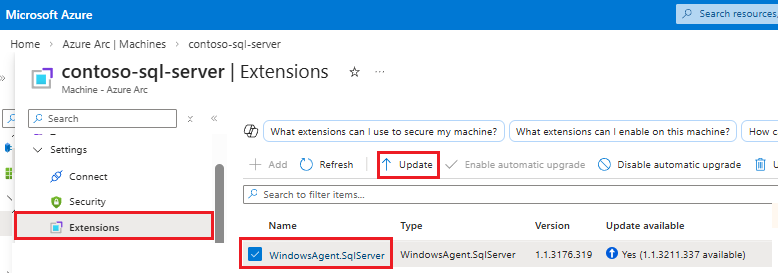
Selecione Sim na caixa de diálogo de confirmação da extensão Atualizar para concluir a atualização.
Para obter mais informações sobre como atualizar a extensão do Azure para SQL Server, consulte Atualizar extensão.