Note
Access to this page requires authorization. You can try signing in or changing directories.
Access to this page requires authorization. You can try changing directories.
[This article is prerelease documentation and is subject to change.]
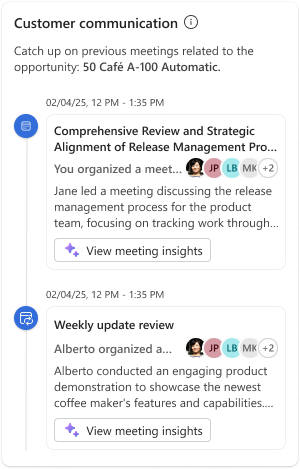
The Customer communication card shows a chronological view of your interactions with a customer, including meetings. This card helps you catch up and gain insights into all the activities that happened for a given opportunity. You can see all the meetings related to the opportunity. For each meeting, the Sales app provides AI-generated insights such as the summary, sentiment, objections, and next steps.
Important
- This is a preview feature.
- Preview features aren’t meant for production use and might have restricted functionality. These features are subject to supplemental terms of use, and are available before an official release so that customers can get early access and provide feedback.
When working on opportunities, you often manage numerous activities, such as meetings, making it difficult to keep track of every interaction and discussion. The Customer communication card consolidates all these events and provides insights for each one directly within Outlook. If you've access to an opportunity in CRM, you can view insights from related meetings, even if you didn't attend the meeting. This helps you stay updated and informed without leaving your workflow.
Where to see the Customer communication card
You can see Customer communication card in the following places:
- Sales pane in Outlook when you open an email or a meeting.
- Meeting preparation card in Sales agent in Microsoft 365 Copilot.
Note
- When you're viewing an email, the Customer communication card is displayed only when the email is connected to an opportunity. Once the opportunity is connected, the Customer communication card displays the meeting activities related to that.
- When you're viewing a meeting in Outlook calendar, the Customer communication card is displayed only when the meeting is connected to an opportunity.
Prerequisites
- Meeting insights must be turned on in Access settings.
- If you're a Salesforce user, server-to-server connection must be set up.
Access the Customer communication card in Outlook
In Outlook, open an email or a meeting.
Go to the Customer communication card.
To view insights for a meeting, select View meeting insights.
Access the Customer communication card in Sales agent in Microsoft 365 Copilot
- Access Sales agent in Microsoft 365 Copilot.
- In the meeting preparation card, select Prepare with insights, and then go to the Customer communication section.